Obsidian plugin // v1.0.0 // works offline

Scripture,
illuminated.

Hover any verse in your notes and read it on the spot. Keep the whole Bible open beside your writing. Trace every word to its Hebrew and Greek root. Then put it on screen, in light.

Free & open source · View on GitHub · Watch the studies on YouTube

  • 31,102 KJV verses built in
  • Hebrew · Greek · Septuagint
  • Free & open source
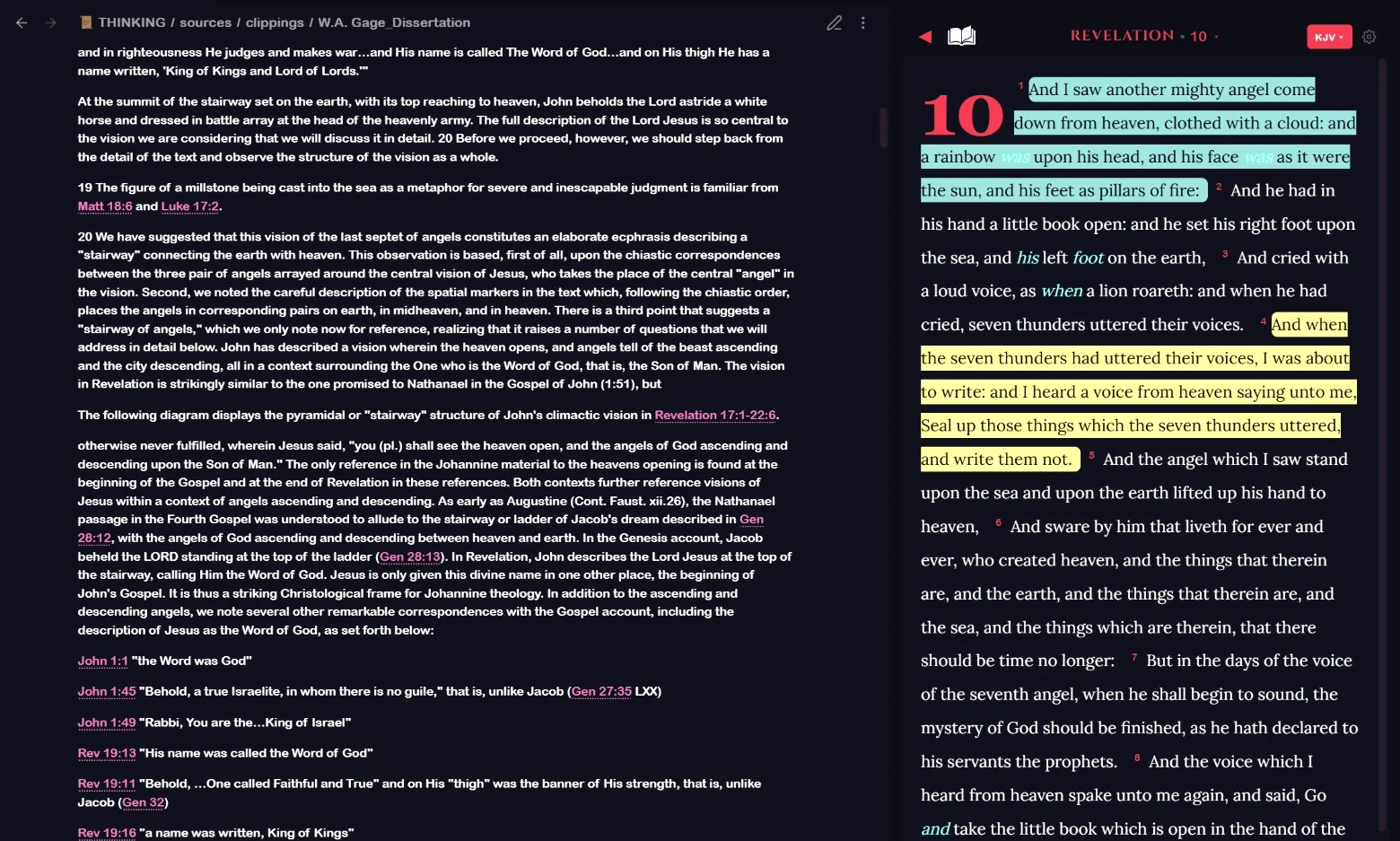
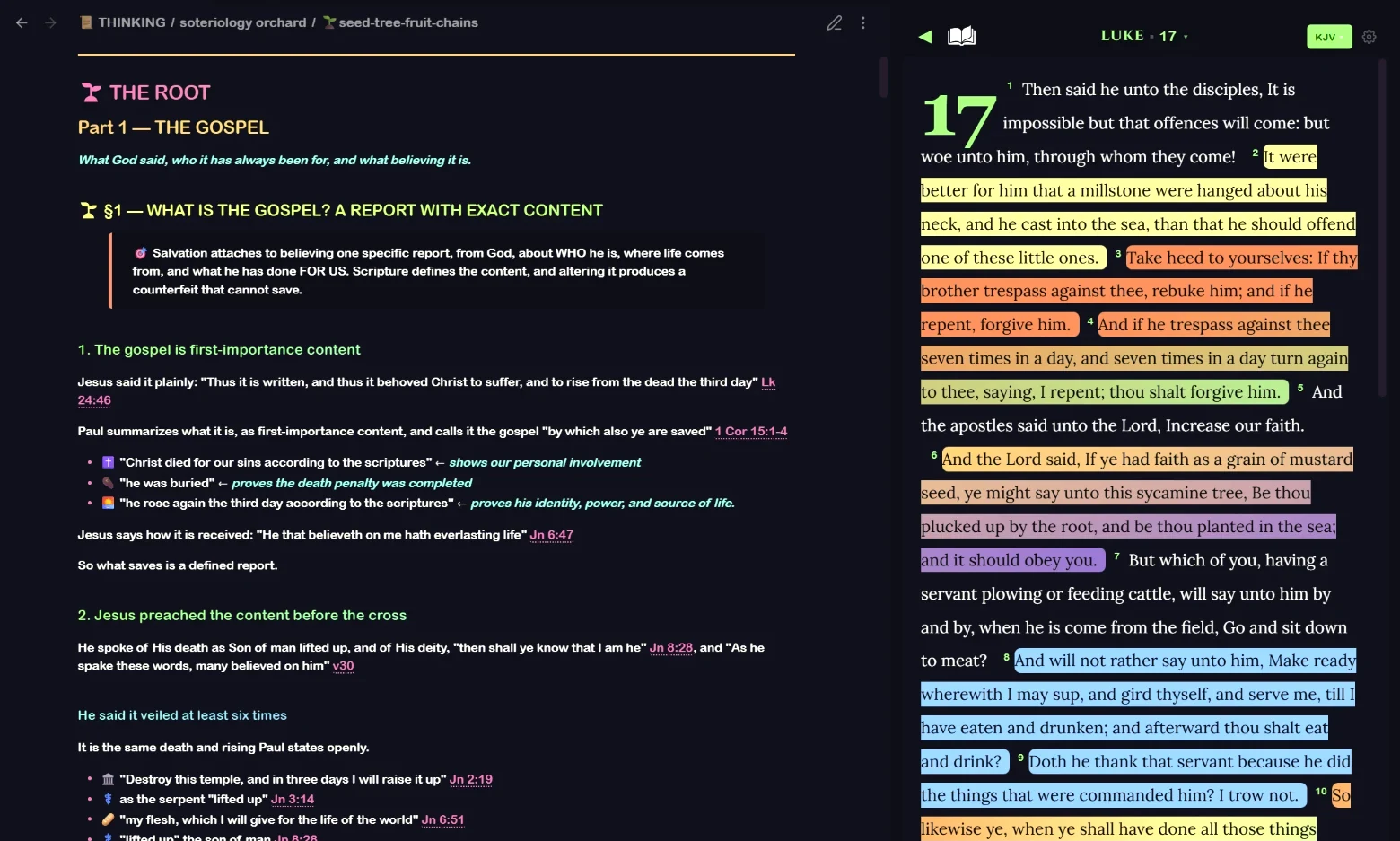
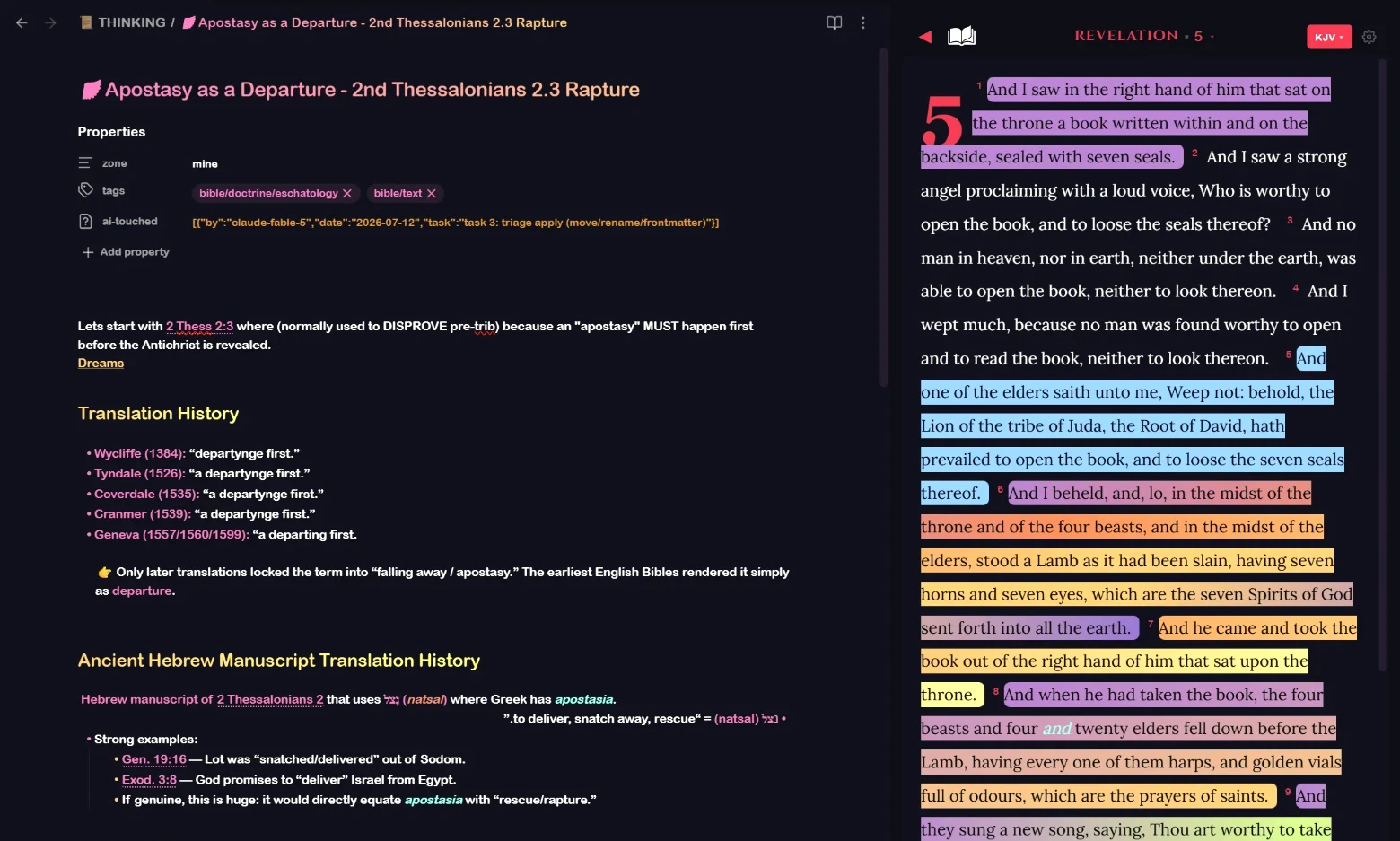
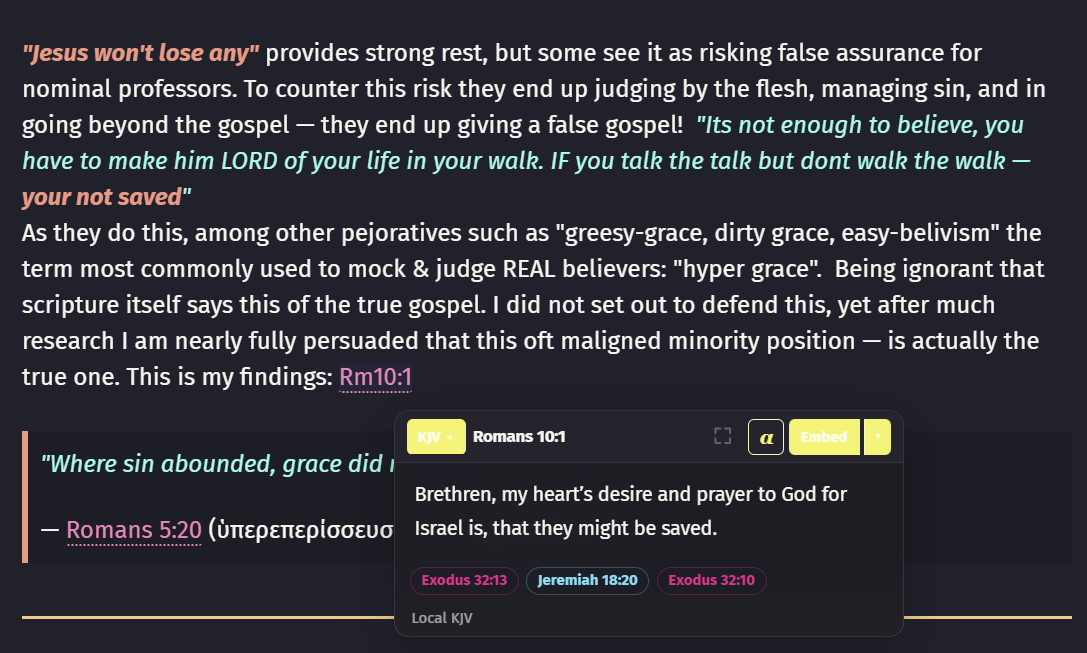
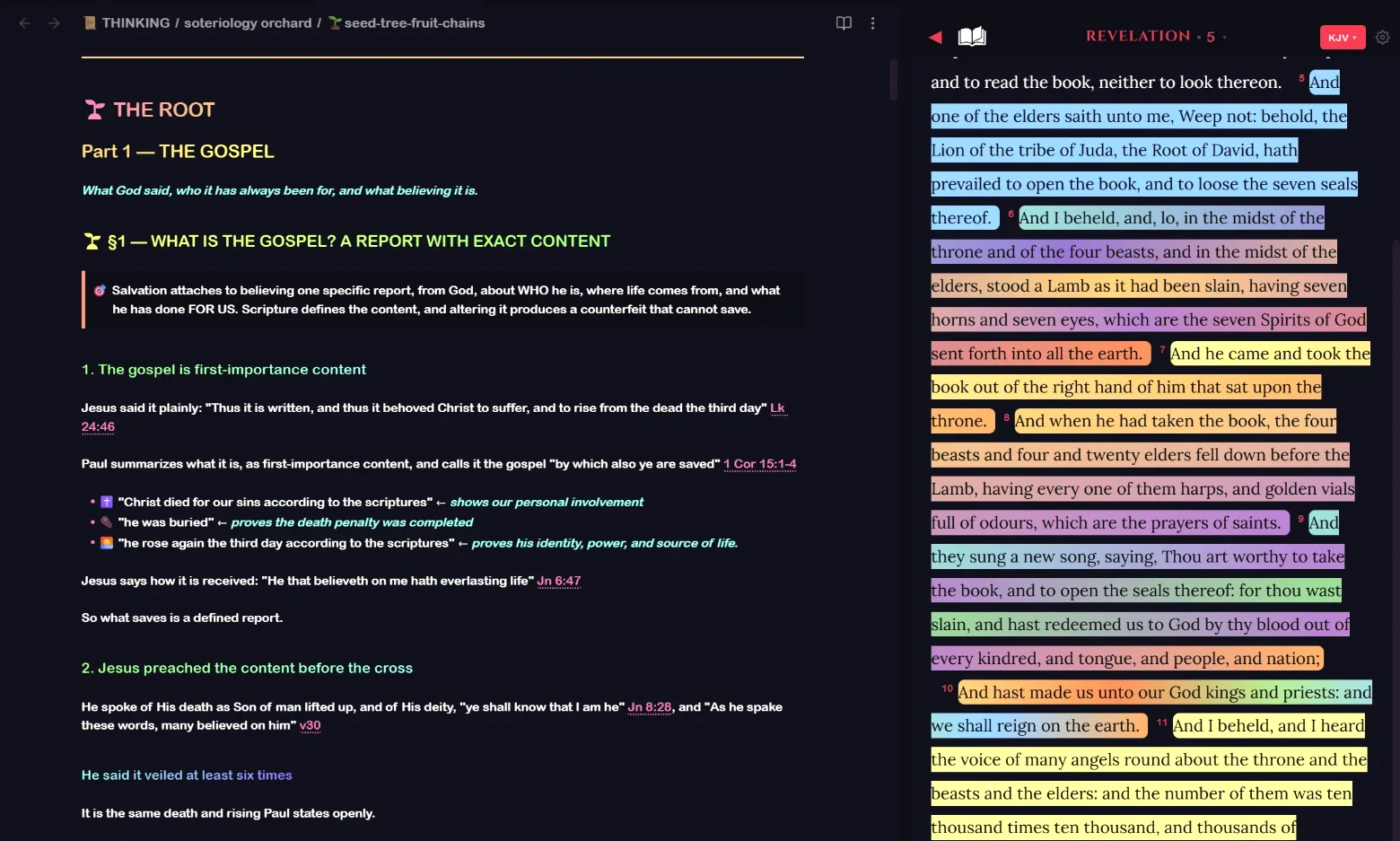
A note in Obsidian with the reference Rm10:1 underlined and a tooltip showing Romans 10:1 in the KJV, with cross-reference chips and an Embed button A study note beside Bible mode open at Revelation 5, with verses highlighted in the colors of the notes that cite them A dissertation clipping full of references beside Bible mode at Revelation 10, where the cited verses are highlighted and the rest are plain The seed-tree-fruit study note beside Bible mode at Luke 17, its verses lit in many note colors A note on 2 Thessalonians 2:3 with linked references beside Bible mode at Revelation 5
Hover · Romans 10:1
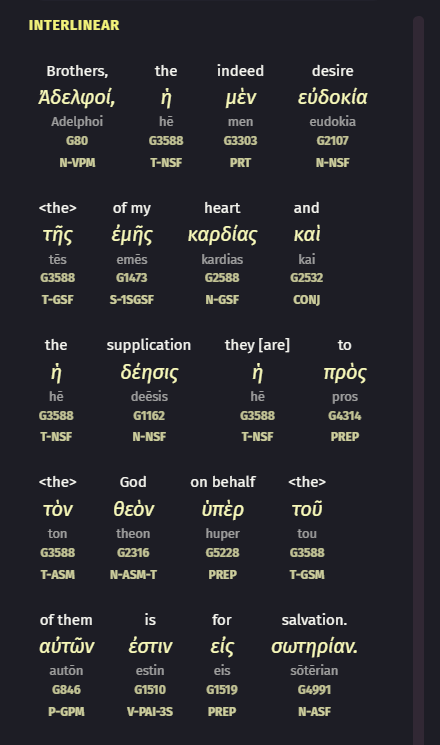
The interlinear panel showing Romans 10:1 word by word in Greek, with transliteration, Strong's numbers and morphology
G3056 · nounλόγοςword
H7225 · nounרֵאשִׁיתbeginning
G5485 · 192 versesχάριςgrace

✦ Desktop & mobile

Your whole study,
in your pocket.

The same plugin runs in Obsidian on your phone: Bible mode, your highlights, hover tooltips, interlinear and Strong's. Sync your vault and your notes light up the same verses everywhere.

ScriptureScribe on a desktop: a study note beside Bible mode at Luke 17, verses highlighted in note colors
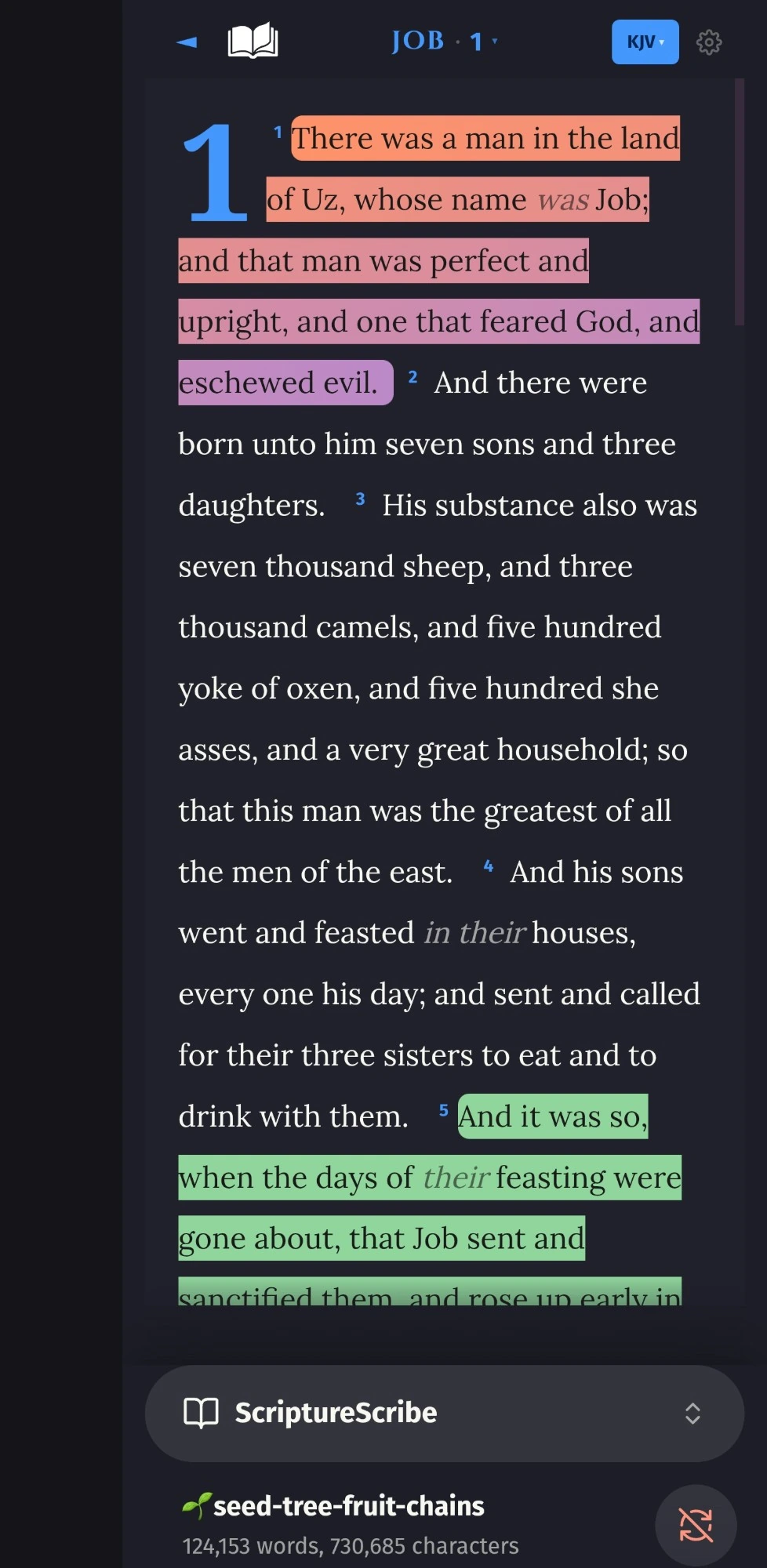
ScriptureScribe in Obsidian on a phone: Bible mode at Job 1, verses highlighted in the colors of the notes that cite them
Full-featured on mobile

✦ Why ScriptureScribe

A second brain
for your Bible.

Bible software like Logos and e-Sword was built around a library, with a notes pane added on. ScriptureScribe starts from your notes. Everything you write becomes part of how you read Scripture, and the Bible, the original languages and your own commentary all live in one place.

Traditional Bible softwareScriptureScribe
Your notesLive inside the app's own databasePlain Markdown files you own, in Obsidian, forever
Connecting a note to a verseAttach it to the verse by handJust write “Rom 6:1”. It's connected, and so is “v4” on the next line
Reading the BibleA note icon here and thereEvery verse your notes cite lights up in that note's color. Click it to read what was written
Other people's insightBuy or install commentary modulesDrop a friend's, pastor's or teacher's notes into your vault. Their writing appears on every verse they cite
WritingCopy, paste, formatHover to check, one click to embed, Embed All for the whole note
Hebrew & GreekOften a separate purchaseInterlinear, Strong's, LSJ and the Septuagint included, offline
Teaching & videoExport to presentation softwareCard Mode: hover a verse in your notes and it fills the screen
01 Hover

Hover a reference.
The verse appears.

ScriptureScribe spots references as you type, like Gen 1:1, Jn 3:16, 1 Cor 13:4-8 and 2Tim 3:16, and underlines them without adding anything to your markdown. Hover one to read the verse, switch translations, or follow its cross-references.

When you want the verse in the note for good, embed it as a link, a footnote or a quote block. Embed All converts every reference in the note in a single undo step.

  • Nothing added to your files
  • KJV built in, works offline
  • 3 embed styles
  • 7 real translations, no stand-ins
The Word · study notes.md

The Word

John opens his gospel by echoing . Compare . The same Word is a lamp in , it outlasts everything (), and it still cuts to the heart: .

Try it: hover or tap a reference, then Embed

02 Read

The Bible,
lit up by your notes.

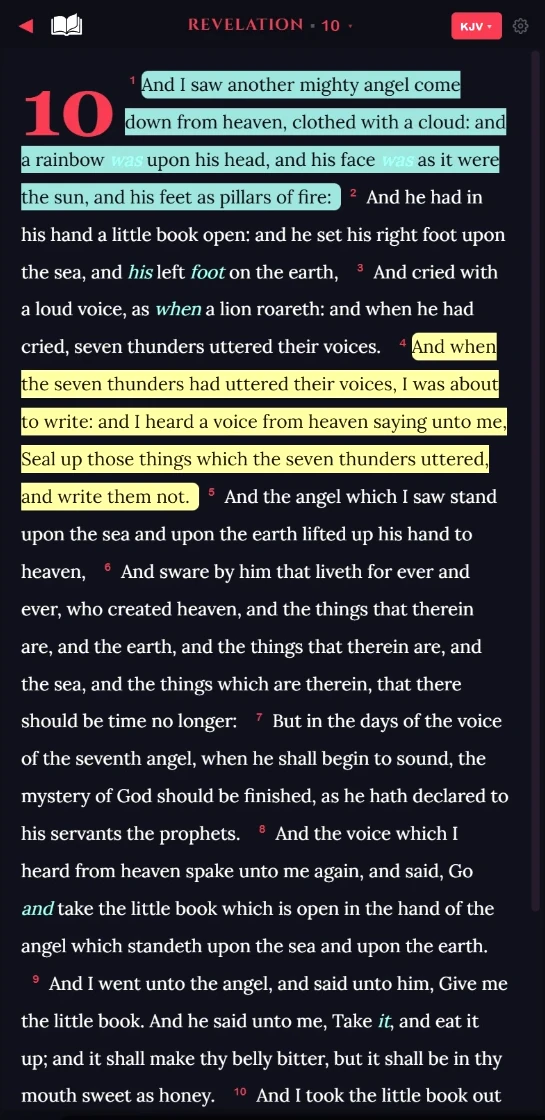
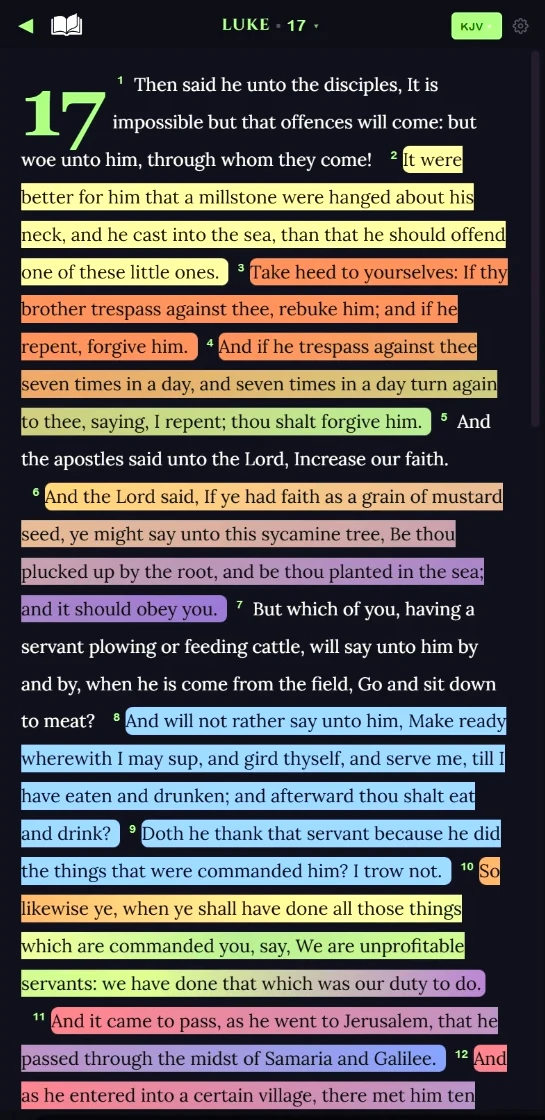
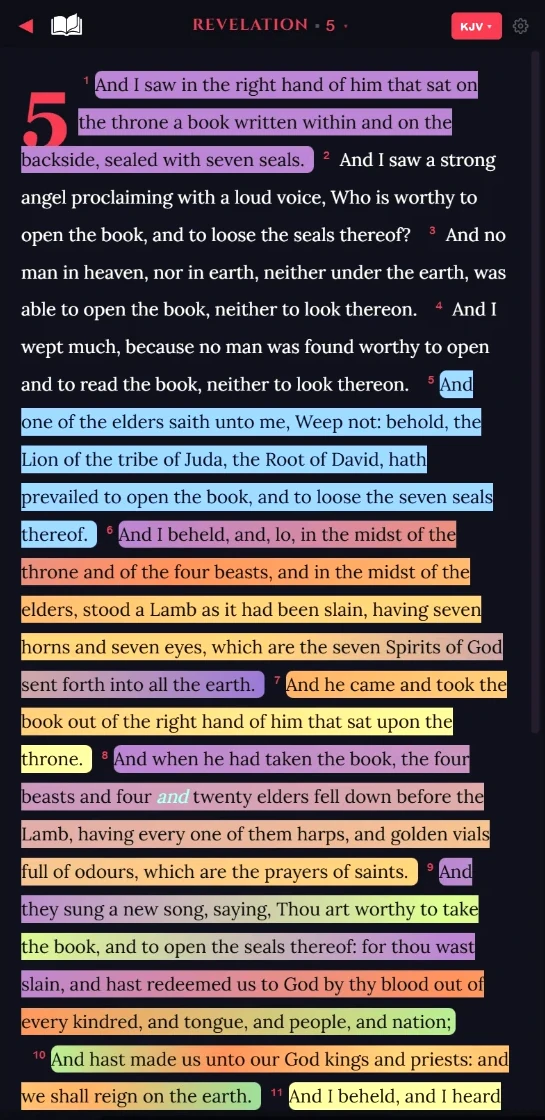
Open Bible mode beside your writing and read any chapter. Every verse that one of your notes cites is highlighted in that note's own color, and a verse cited by several notes blends their colors. Plain verses stay plain, so at a glance you see where your study has been and where it hasn't.

Click a highlighted verse and In your notes lists every note that cites it, with the sentence around each citation, one click from the note itself. That includes notes other people wrote, if they're in your vault.

  • A color per note
  • Click a verse, read the notes
  • All 66 books
  • Supplied-word italics
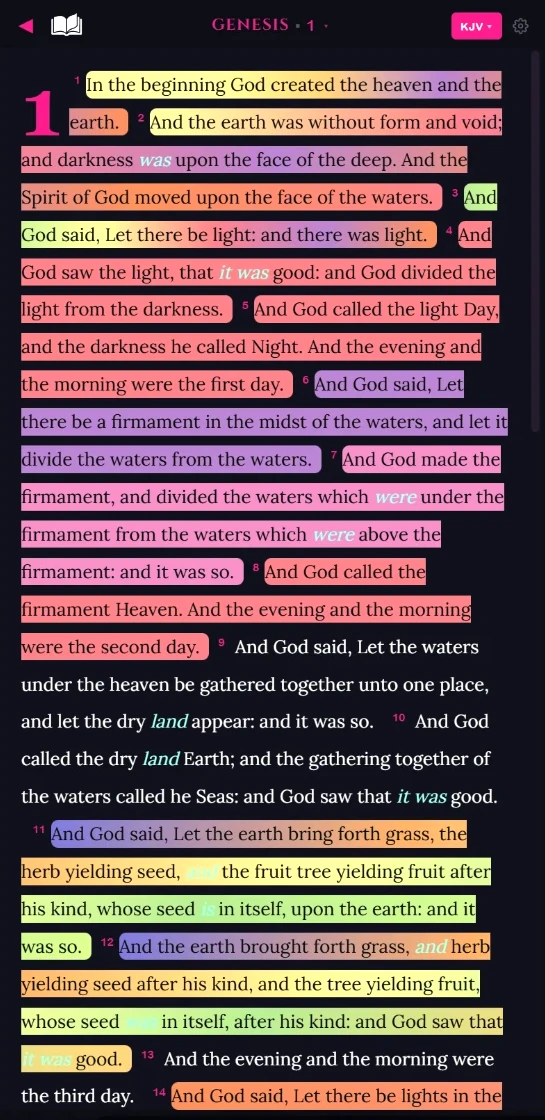
Bible mode at Revelation 10: verses 1 and 4 highlighted in two note colors, the rest plain, with gray italic supplied words Bible mode at Luke 17 with verses highlighted in yellow, orange, green, purple and blue for different notes Bible mode at Revelation 5: the first verses plain, then a run of verses highlighted in blended note colors Bible mode at Genesis 1 with most verses highlighted in different note colors
BIBLE MODERevelation 10a color for every note

03 Research

Every word,
down to the root.

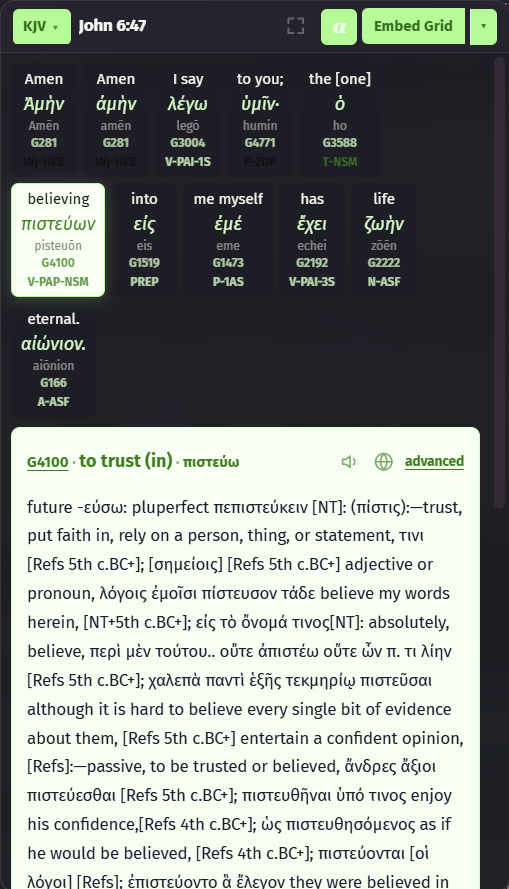
Switch to Research mode for an interlinear view of every verse: the original word, its transliteration, Strong's number and grammar. Tap any word below to open its lexicon entry.

The interlinear for John 6:47 with G4100, pisteuo, believe, open to its full lexicon entry

Every word, defined

Click a word in the interlinear for its Strong's number, grammar and full lexicon entry. In Research mode, type G4100 or H7225 to find every verse that uses it. You can also search in English, Greek or Hebrew, or by meaning (that model downloads once, the first time).

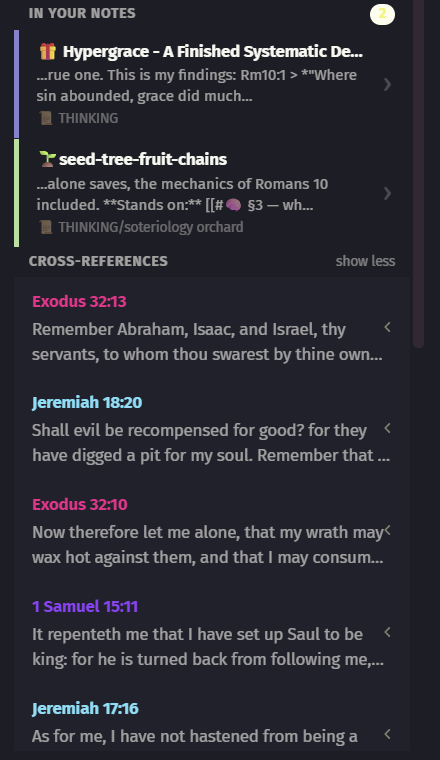
The In Your Notes and Cross-references sections of the reading panel

Your notes + cross-references

In your notes lists every note in your vault that cites the passage. Below it, cross-references are listed for 28,752 verses.

Under the hood

  • InterlinearHebrew OT · Greek NT · Septuagint
  • LexiconsStrong's · LSJ · Swete LXX
  • MorphologyEvery word parsed
  • SearchKeyword · Strong's · semantic
  • DataBundled, loaded on demand

04 Present

Put the Word
in lights.

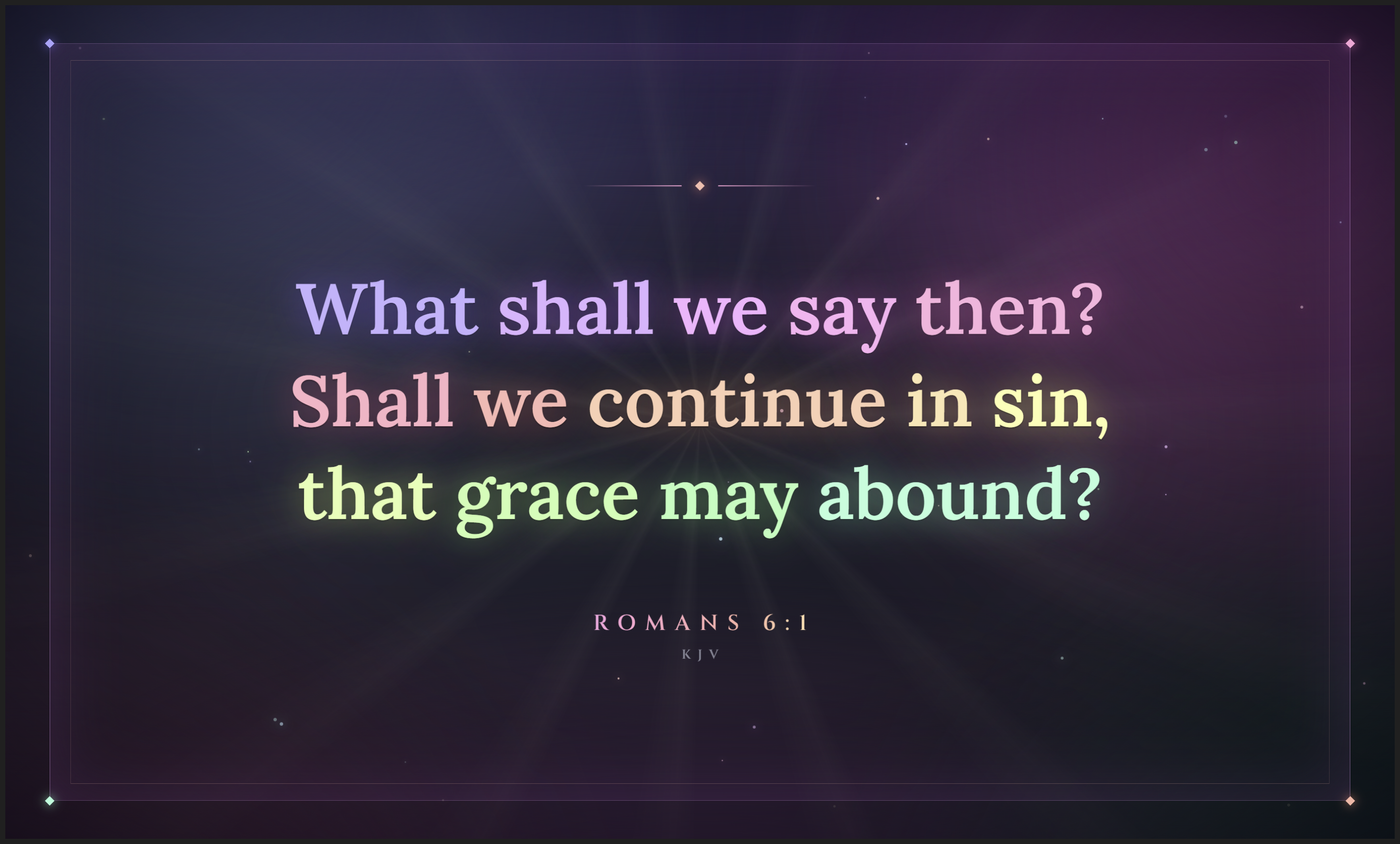
Card Mode turns any verse into a full-screen card for preaching, teaching, streaming or recording. Hover a reference and the card is on screen.

A full-screen verse card for Romans 6:1 in the Velvet Aurora skin: rainbow-gradient serif text on a deep violet starfield
Velvet Aurora+ your own .html

Live preview: each button loads that skin's real HTML file with the plugin's card engine, showing the same verse. Skins are plain HTML you can swap or write yourself; next card, previous card, pin, emphasis and contrast are commands you can bind to hotkeys.

31,102KJV verses, offline
28,752verses with cross-references
19,570Strong's entries
10,714LSJ lexicon entries

05 Install

Up and running
in two minutes.

No coding and no terminal. Both downloads include all the Bible, Hebrew, Greek and lexicon data. Take the full experience, or add the plugin to the vault you already have.

As seen on JoyRaptor's Bible studies

The full study vault

Scripture Scribe: video walkthrough by JoyRaptor

The exact setup from the videos: ScriptureScribe and the Orchard Tree already installed, every card skin, and the real studies (Seed · Tree · Fruit, Hypergrace, Metanoia, the eschatology orchard) so you can follow along verse by verse.

  1. Download and unzip.
  2. In Obsidian: Open folder as vault, pick ScriptureScribe-demo-vault.
  3. Click Trust author and enable plugins. It opens on the tour.
Get the study vaultv1.0.0 · 84 MB · plugin included

For your own vault

Plugin only

Add ScriptureScribe to the notes you already have. Everything you've written starts lighting up the Bible as soon as it scans.

  1. Download and unzip: you get a scripture-scribe folder.
  2. Move it into <your vault>/.obsidian/plugins/. The .obsidian folder is hidden: on Windows, View → Show → Hidden items; on Mac, ⌘⇧.
  3. Settings → Community plugins: turn off Restricted mode, refresh, enable ScriptureScribe.
Get the pluginv1.0.0 · 77.7 MB · 210 MB installed

Then type John 3:16 in any note and hover it. Watch the JoyRaptor's Scripture BibleStudy playlist to see it in real studies. Full guide and troubleshooting: the README.